Sales Overview in Odoo CRM: Managing Campaigns, Status and Follow-ups
More leads, less overview? How campaign-based tracking, a status system, and a daily workflow keep your sales in Odoo CRM under control.
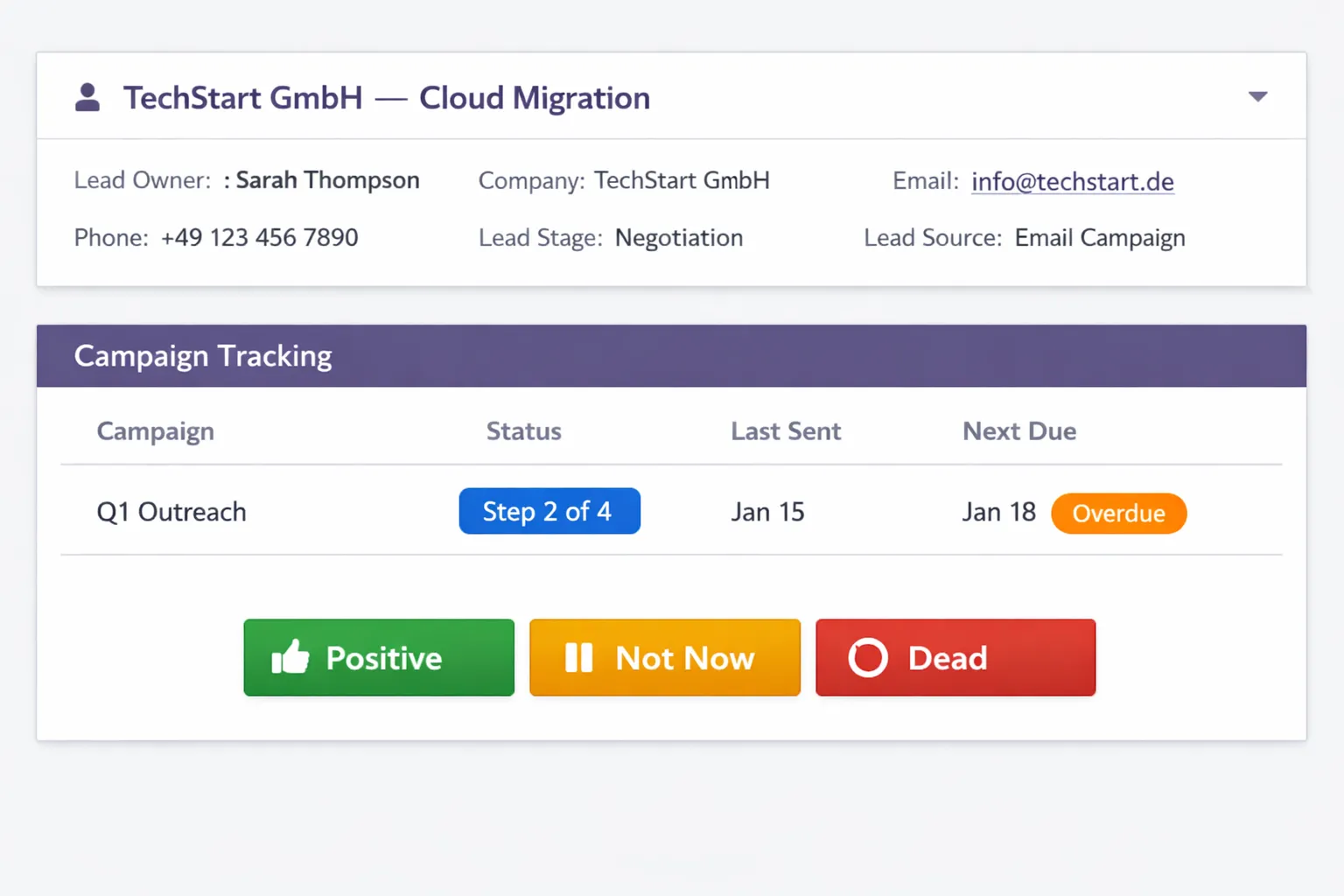
Sales Overview in Odoo CRM: Managing Campaigns, Status and Follow-ups
The more leads you work, the harder it gets to keep an overview. Every sales team doing active outbound knows this problem. This guide shows how campaign-based tracking keeps your sales in Odoo CRM structured.
The Problem: Pipeline Alone Is Not Enough
The Odoo pipeline is a good tool for opportunity management. But it answers a different question than the one that comes up daily in outbound sales.
The pipeline answers:
- Which sales phase is this deal in?
- What's the expected revenue?
- When is the next step in the sales process?
Outbound sales needs:
- Which lead belongs to which campaign?
- What outreach status do they have there?
- When is the next email due?
- Who replied, who didn't?
- Which leads are blocked (Do Not Contact)?
Pipeline and outreach tracking are two different systems. One doesn't replace the other.
Campaign-Based Tracking as the Solution
Instead of only placing leads in pipeline stages, you additionally assign them to campaigns. Each campaign has:
- A name and code (e.g., "Q1-DACH-SaaS")
- A language (DE/EN)
- Configurable wait times (initial_delay_days, followup_days)
- An email sequence with multiple steps
- A lead list with individual statuses
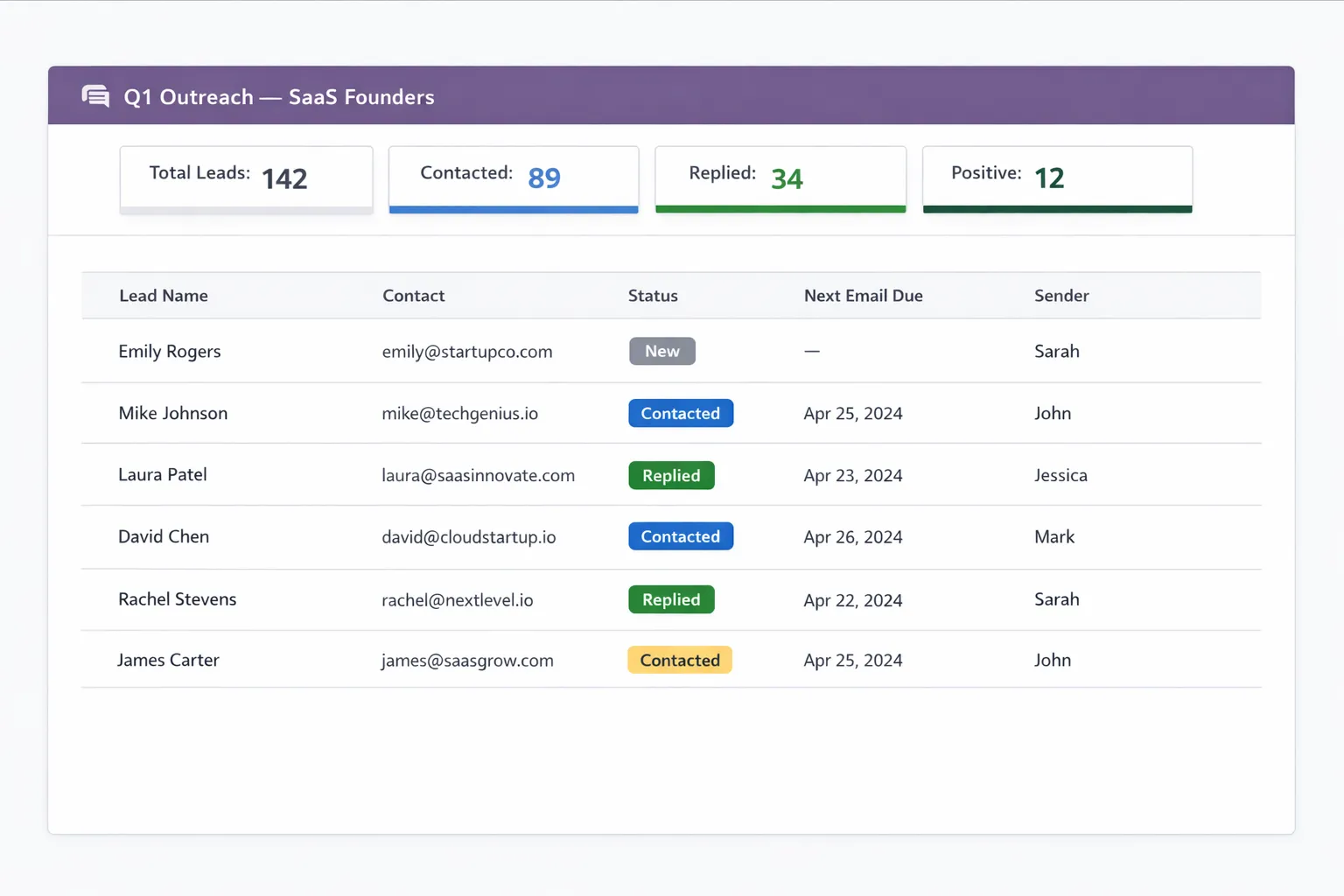 The dashboard shows per campaign: leads, status distribution, due actions.
6 Statuses for Clarity
Every lead in a campaign has one of six statuses:
| Status | What it means | Next action |
|---|---|---|
| New | Assigned, not yet contacted | Send first email |
| Contacted | At least one email sent | Wait for reply or follow up |
| Replied | Response received | Qualify |
| Positive | Interest signaled | Schedule meeting/call |
| Not Now | Currently no interest | Re-approach later |
| Dead | No further contact | Archive |
A lead can have different statuses in different campaigns. "DACH-SaaS: Contacted" and "UK-Enterprise: Positive" simultaneously – that's not a contradiction.
The Daily Workflow
Here's what a structured sales day with campaign-based tracking looks like:
1. Open Dashboard
Check the dashboard in the morning:
- How many emails are due today?
- Are there new replies?
- Which leads need a status change?
2. Send Due Emails
The system shows which leads expect an email. Before sending, a placeholder check wizard runs – it warns if a lead has incomplete data (no first name, no company).
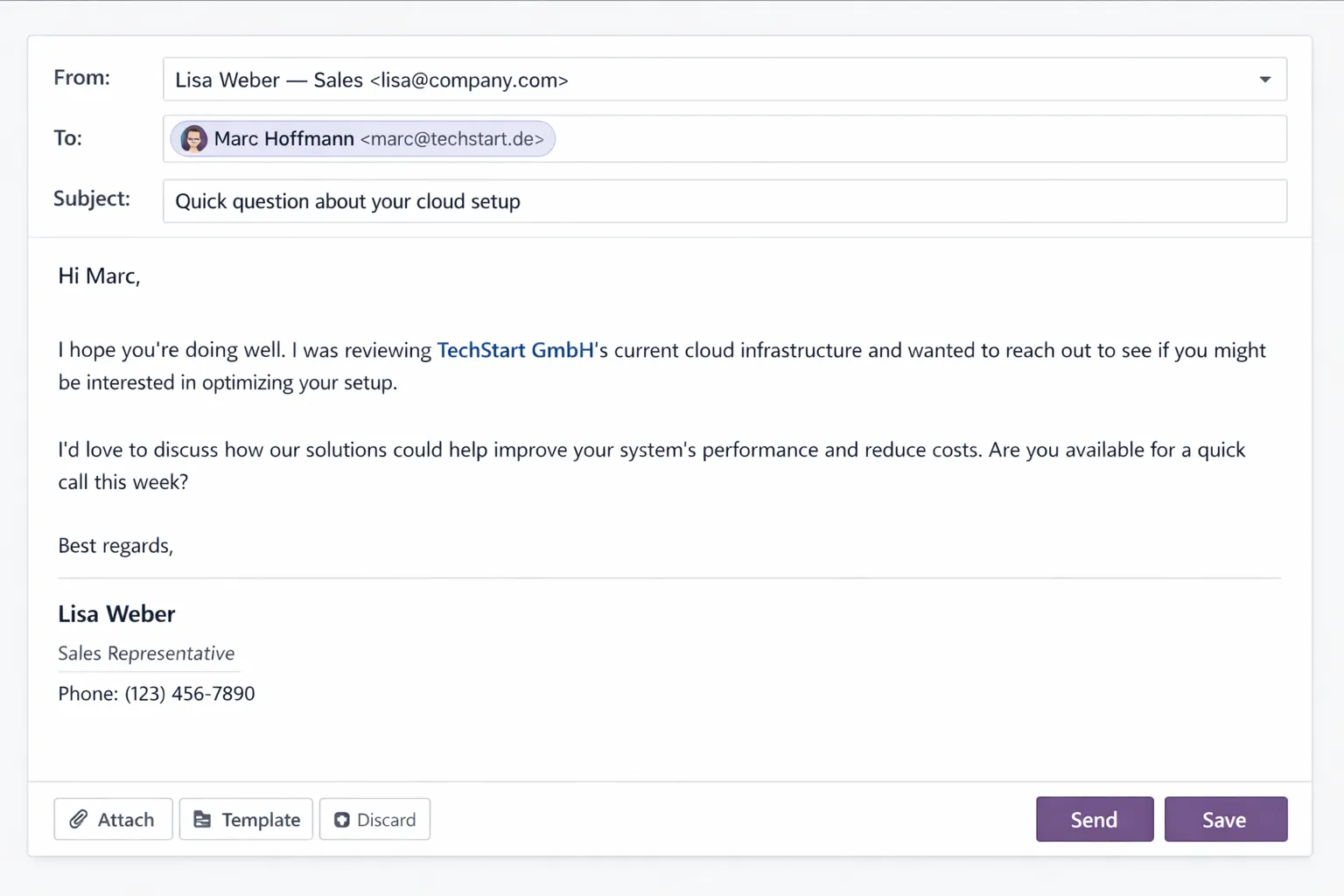 Templates with 20+ placeholders – every email feels personally written.
Placeholders like {{ first_name }}, {{ company_name }}, and {{ sender_name }} are filled in automatically. Every email looks like it was written by hand.
3. Process Replies
Replies are detected automatically. The lead status changes to "Replied". You qualify: Is this positive? "Not Now"? Or "Dead"?
4. Update Status
After calls or meetings: update status, add notes. On "Positive," optionally convert to pipeline opportunity.
Bulk Operations for Large Lead Volumes
With 200+ leads per campaign, individual processing is unrealistic. The module supports bulk operations:
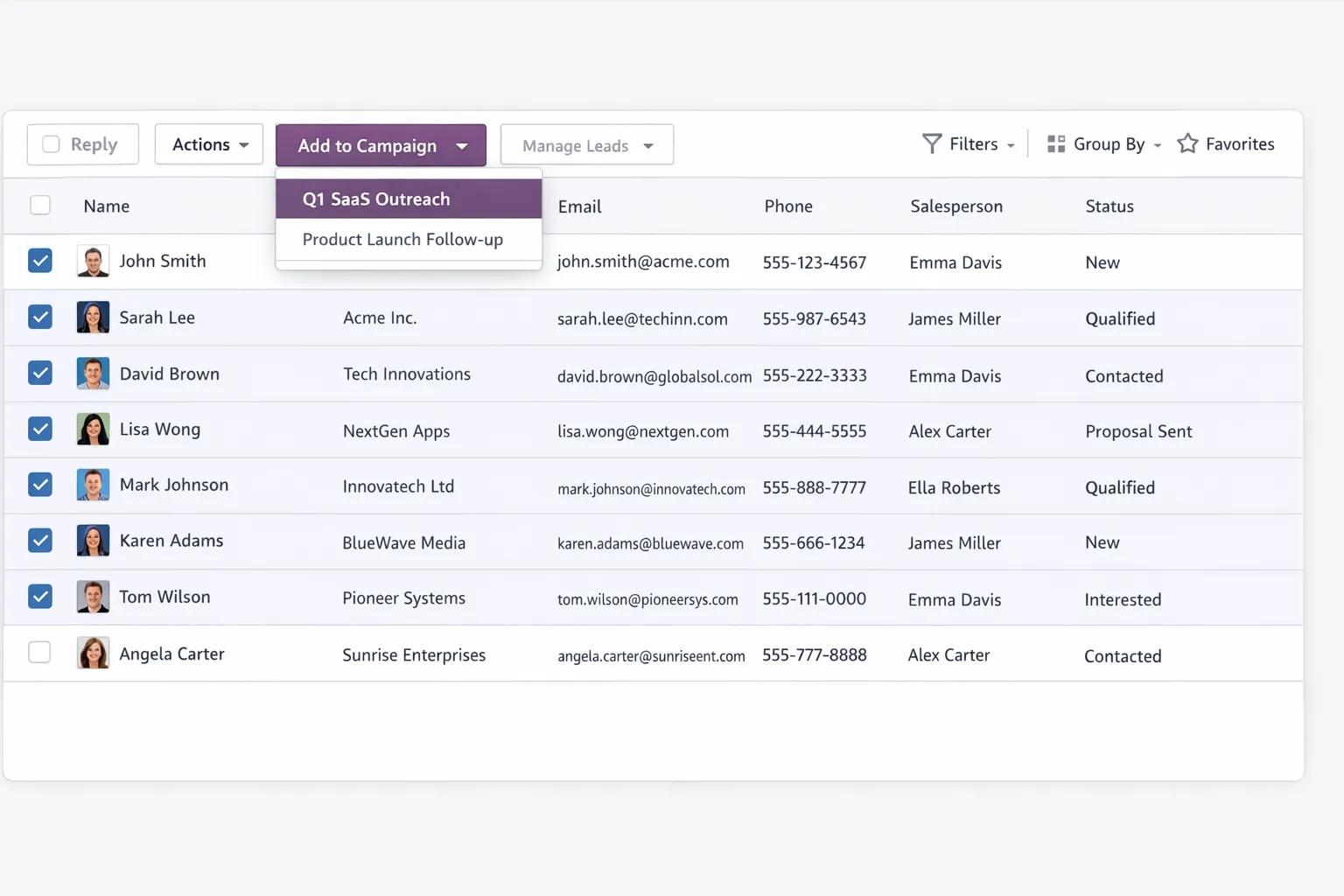 Assign leads to a campaign directly from the filtered list view.
- Bulk Assign: Assign multiple leads to a campaign at once
- Batch Sending: Send all due emails of a step at once
- Filtered Views: Filter leads by status, campaign, due step
Assigning 200 leads to a campaign takes under 5 minutes. Individually, it would be an hour.
GDPR Under Control
Compliance is not an afterthought. The Do-Not-Contact system works at three levels:
| Level | Effect |
|---|---|
| Lead | Single lead is blocked |
| Contact | Person blocked across all leads |
| Company | Company blocked – cascades to all contacts and leads |
Each block is logged with reason and timestamp. 5 predefined reasons are available. This ensures full traceability during audits – when and why a contact was blocked.
Multi-Sender: Everyone Sends from Their Own Address
For deliverability and authenticity, each team member sends from their own address:
- Custom display name
- Custom signature
- Custom SMTP server
Recipients see "Thomas from Company X" – not "info@company.com". This improves open rates and looks more professional.
Practical Tips
3 Templates per Campaign Are Enough
Initial contact, follow-up with added value, final attempt. More than three steps rarely add value – they just increase complexity.
Don't Set Wait Times Too Short
3–5 days between steps is a good benchmark. Daily follow-ups come across as aggressive.
Maintain Status Consistently
The overview only works if statuses are current. "Replied" must be qualified within 24 hours – otherwise the view becomes stale.
Check Dashboard Daily
5 minutes in the morning is enough. Due emails, new replies, status changes. The overview only stays current if you use it.
Availability
The system described is available as an Odoo module:
- CRM Outreach Campaigns ($499 one-time)
- CRM Direct Email (Free) – Solves the follower problem in the email composer
Built on Odoo 18 – versions for Odoo 17 and 19 coming soon.
Conclusion
Sales overview in Odoo CRM requires more than pipeline stages. Campaign-based tracking with clear statuses, automatic follow-up reminders, and bulk operations makes the difference between "I think we contacted that lead" and "Lead is in Q1-DACH-SaaS, Step 2, follow-up due tomorrow."
The more structured the process, the less falls through the cracks.
